

- Resources
Innovative Thinking


No plugin count makes a WordPress site slow by itself, which is why asking whether too many WordPress plugins are slowing your website rarely produces a useful answer. A site running thirty-five can load faster than one running nine. What decides it is how many of those plugins put code into every page, how much of that code the page then never uses, and whether anyone can still say why each one is installed.
The answerable version is which plugins, and it takes an afternoon and no paid tools. Measure what real visitors get, look at what a single page downloads and never touches, then switch off one plugin at a time on a copy of the site. The order matters: each pass narrows what the next one has to test.
Seldom on their own. No published threshold exists, and WordPress sets none: its documentation says plugins in the directory “are of varying quality and are often works in progress.” One badly built plugin that loads on every page costs a visitor more than twenty tidy ones that load on none, so the list length tells you almost nothing about the page.
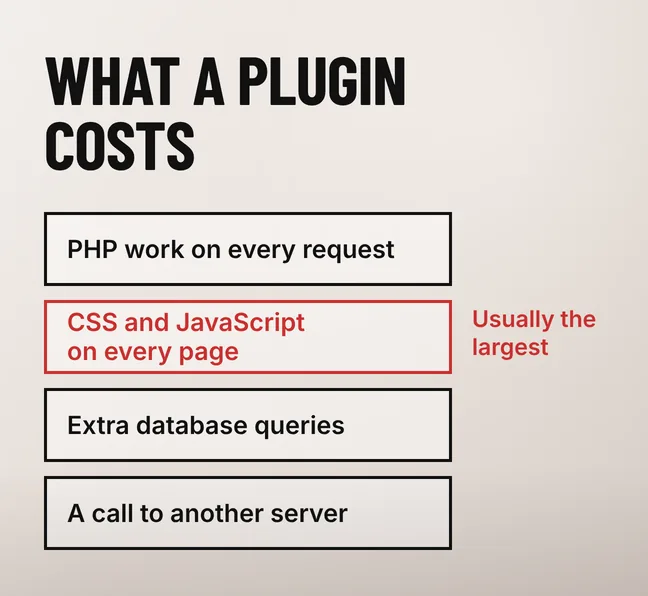
An active plugin can charge you in four separate ways on a single page request. It runs PHP on the server before anything reaches the browser. It can enqueue its own stylesheet and JavaScript into the page whether that page uses the feature or not. It can add database queries, sometimes on every request. And it can make the browser fetch something from another company’s server, which puts part of your load time outside your control entirely.
The second of those four holds most of the recoverable time, because it happens on pages that do not need the feature. A contact form plugin loading its stylesheet, its JavaScript and a captcha script on all forty pages of a site is doing useful work on one of them.
Deactivated plugins are a maintenance problem rather than a speed problem. A deactivated plugin runs no code on a page request, so it costs the visitor nothing, but its files stay on your server and still need updating. WordPress’s own plugin documentation separates the two actions deliberately: you “select the checkbox next to the plugin name and click the ‘Deactivate’ link”, and only then “click the plugin’s ‘Delete’ link”. If you will not switch it back on, delete it.

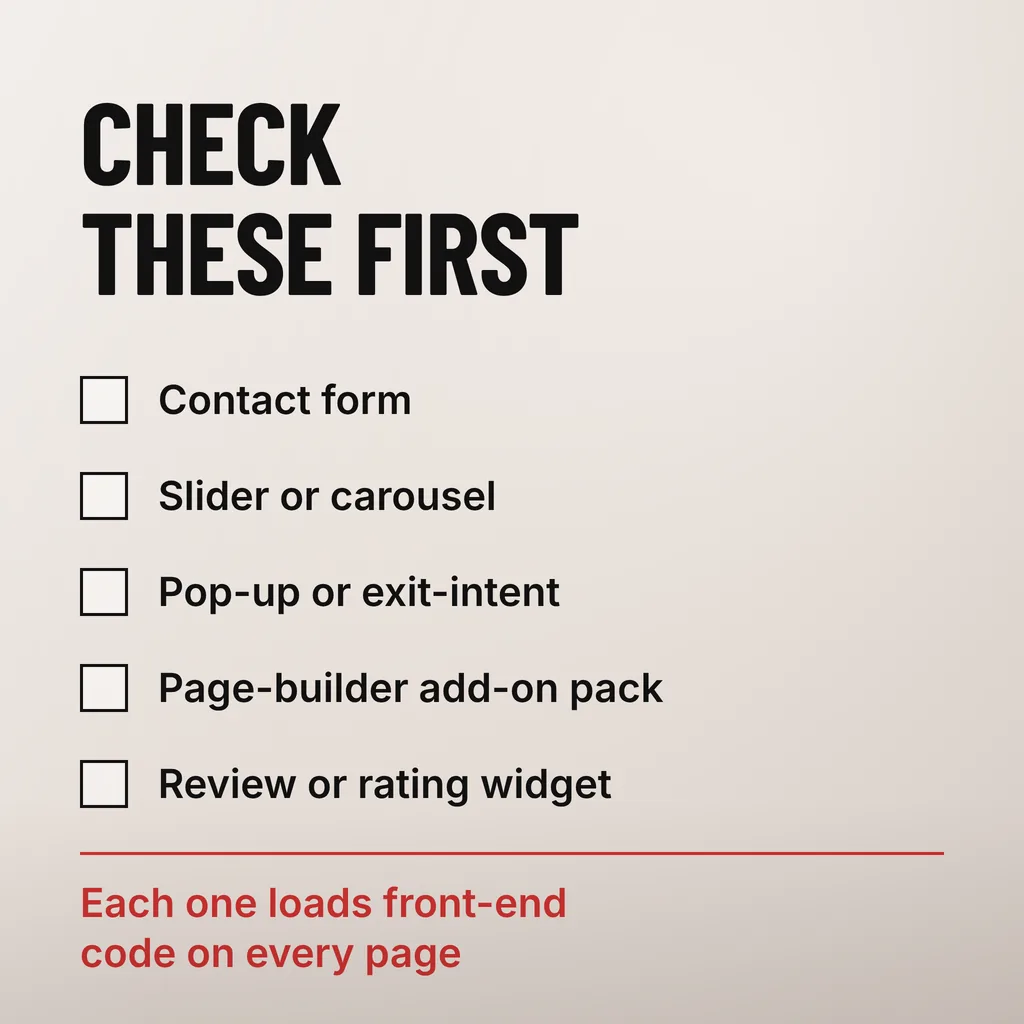
The ones that add front-end code to every page while serving a single page. Contact forms, sliders, pop-ups, review widgets and page-builder add-on packs are the recurring names. Caching, backup and SEO plugins mostly work in the admin screens or before the page is built, so they rarely appear in what the browser has to download.
| What the plugin does | What it typically loads on the front end | Should it load on every page? |
|---|---|---|
| Contact form | Its own stylesheet and JavaScript, often plus a captcha script from another server | No — only pages with a form |
| Slider or carousel | A JavaScript library and its stylesheet, on every page the theme includes it in | No — only pages with a slider |
| Pop-up or exit-intent | JavaScript on every page, by design | Only if it genuinely runs everywhere |
| Page-builder add-on pack | Stylesheets and scripts for dozens of widgets, most of them never placed | No — check which widgets are used |
| Review or rating widget | A script, usually fetching content from a third-party service | No — only pages showing reviews |
| Chat or WhatsApp button | A small script, sometimes a third-party request | Yes, if every page’s design includes it |
| SEO, caching, backup or security | Almost nothing to render — admin screens, scheduled jobs, or work removed rather than added | Yes |
Two plugins doing the same job is the other pattern worth looking for. A site carrying two caching plugins, or an SEO plugin plus a separate schema plugin, pays twice and can write conflicting output into the same page. That is a correctness problem before it is a speed one.
Measure in three passes, in this order: field data for what real visitors experience, the browser’s coverage report for what one page downloads and never uses, then one plugin at a time on a staging copy. Each pass narrows the next, and skipping to the plugin list means removing things on a hunch.
Start with field data, because a lab score on your own laptop on office fibre is not what a customer gets. PageSpeed Insights reports real Chrome user data for a URL where enough of it exists. Google’s web.dev guidance on Largest Contentful Paint sets the bar it should be read against: “To provide a good user experience, sites should strive to have Largest Contentful Paint of 2.5 seconds or less”, measured at “the 75th percentile of page loads, segmented across mobile and desktop devices.” Most Malaysian visitors arrive on a mid-range Android phone on 4G, so the mobile column is the one that matters.
Then look at what a single page actually uses. Chrome’s Coverage panel “helps you find unused JavaScript and CSS code”: it lists every file the page loaded, and its “Unused Bytes column is the number of bytes that weren’t used”, with “the percentage of code used” shown in the status bar at the bottom. Open your homepage, record coverage, sort by unused bytes, and read the file paths. Anything under wp-content/plugins names the plugin responsible, and a file that is 95% unused on your busiest page is the shortlist writing itself.
Only then switch plugins off, one at a time, on a copy of the site. WordPress’s own troubleshooting advice is to “try deactivating plugins one at a time until you find the one that’s causing the issue”, and that works for speed as well as for breakage — but it has to happen on staging. Deactivating a form or a payment gateway on a live Malaysian SME site at nine in the evening loses real enquiries and real FPX checkouts while you test.
Measure the same page the same way before and after each change, on a throttled mobile profile. A removal that improves nothing is still a result: the time is going somewhere else.
Then removing them changes nothing, which is a common outcome. Server response time, uncompressed images and the theme or page builder usually account for more of a small business site’s load time than the plugin list does. Check those first: a plugin cull that fixes nothing still costs a morning and risks breaking a working site.
Server response is what people most often blame plugins for. If the server takes a second and a half to return the HTML before a single plugin asset is requested, no amount of deleting will fix the page, and the hosting is the thing to look at instead. Oversubscribed shared hosting, or a server far from your customers, slows every page equally — and that evenness is the giveaway, because a plugin problem is usually uneven across pages.
Images are the other large one, and the easier fix. An uncropped photograph straight off a phone camera can outweigh every plugin script on the page put together. A page builder carries its own fixed weight on every page it renders, which was accepted when the site was built and is not something a plugin audit recovers.
A plugin list that keeps growing does tell you something. It is a record of decisions nobody owns, and one of the signs that a site is getting expensive to keep running: more to update, more that can conflict after an update, more hours spent working out which of them changed when something breaks.
Keep it and limit where it loads. Four decisions cover almost every plugin on a business site, and writing one against each entry means next year’s audit starts from a list instead of a blank screen.
The written reason is what makes the audit worth repeating. A plugin screen where every entry carries a sentence on what it does and which pages need it is a site somebody is maintaining; one where half the entries are a mystery gets slower every year with nobody able to say why.
As many as it has reasons for, which is not a number anyone can give you in advance. Neither WordPress nor Google publishes a plugin limit, and sites running thirty or more load fast every day. Judge the list by how many plugins add front-end code to pages that do not use the feature, and by how many you can explain. An unexplained plugin is a maintenance problem whatever it does to your speed.
No, not while they are deactivated. A deactivated plugin runs no code when a visitor requests a page, so it adds nothing to load time. Its files stay on the server and still need updating, which is why the WordPress plugins screen offers Delete as a separate action after Deactivate. If you are not going to switch it back on within the month, delete it rather than leaving it listed.
Only if the plugins you remove were loading something on the pages being measured. Largest Contentful Paint responds to what a page downloads and renders, so deleting a plugin that contributed no front-end files to that page changes the score by nothing. Measure the page before and after, on mobile and at the 75th percentile, and treat an unchanged score as evidence that the time is going elsewhere.
We treat the plugin list as a maintenance record rather than a speed setting, because most of what it costs is hours rather than milliseconds. Our website maintenance service covers the audit, the updates and the decision against each plugin, so the list stops growing on its own. If you want one thing to do this week, open your plugins screen and write a sentence against each entry saying what it does and which pages need it. The entries you cannot finish are your audit list.