
- Resources
Innovative Thinking


Lists of WordPress errors tend to name ten symptoms — plugin conflicts, the white screen, database errors, failed backups — and then stop, as though naming the thing were the same as fixing it. The more useful question is what actually happens the moment something breaks, because WordPress does more about it than most owners realise, and the first place to look is not the site at all.
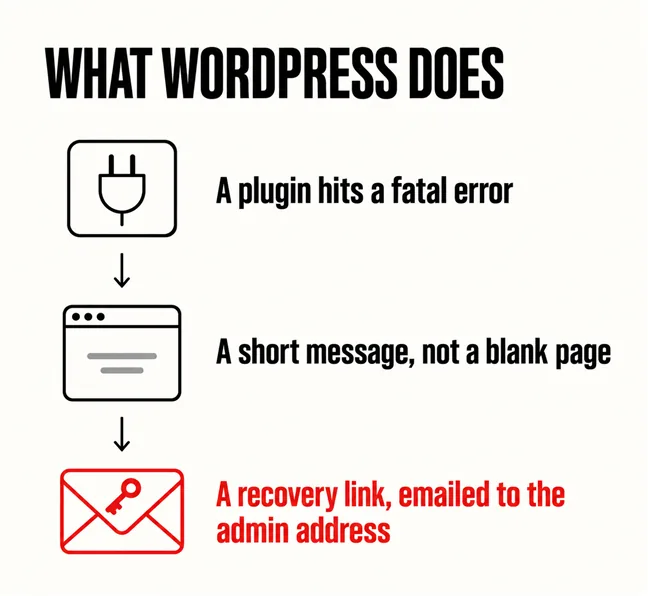
It is your email. Since WordPress 5.2, a plugin that fails badly enough to take down the site triggers a message and an email to the administrator address, with a link that lets you back in. Most of the people we help have never read that email, usually because it goes to an address set up by whoever built the site in 2019.
It catches the error rather than dying quietly. WordPress’s own configuration documentation puts it in one line: “WordPress 5.2 introduced Recovery Mode which displays error message instead of white screen when plugins causes fatal error”. The wording is theirs, slip and all, but the fact is the important part.
What a visitor sees instead of a blank page is a short notice. The documentation on common errors gives it verbatim: “There has been a critical error on this website. Please check your site admin email inbox for instructions”. That second sentence is doing real work and almost nobody acts on it. The same page’s first instruction is to check your email to see whether WordPress has sent details of the error.
If you are genuinely looking at a blank white page in 2026, that is itself a diagnosis.
So a truly blank screen now tells you something specific: either the installation is old enough to predate this behaviour, or the administrator email address is one nobody monitors. Both are worth fixing before anything else, and both are five-minute jobs.
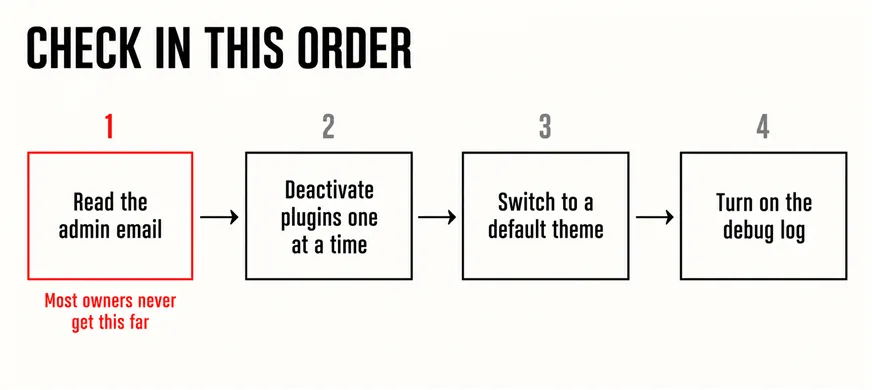
From cheapest and most reversible to most invasive. The sequence below is the one WordPress’s own troubleshooting documentation implies, and it resolves the large majority of what we are called about:
Notice what is not on that list: editing files over FTP, reinstalling WordPress, or calling anyone. Those come after, and usually turn out to be unnecessary. If the site is down right now and customers are waiting, the wider plan belongs in our article on what to have in place before the website goes down.
Most of them, by two habits rather than ten fixes. The first is updating, and WordPress is blunt about why in its hardening guide: older versions of WordPress are not maintained with security updates, which it says makes old versions more open to attack and is one of the primary reasons to keep WordPress up to date. An unpatched plugin is not a theoretical risk; the method is usually public the moment the fix ships. What that means for an ageing site is the subject of our article on whether your website is still secure.
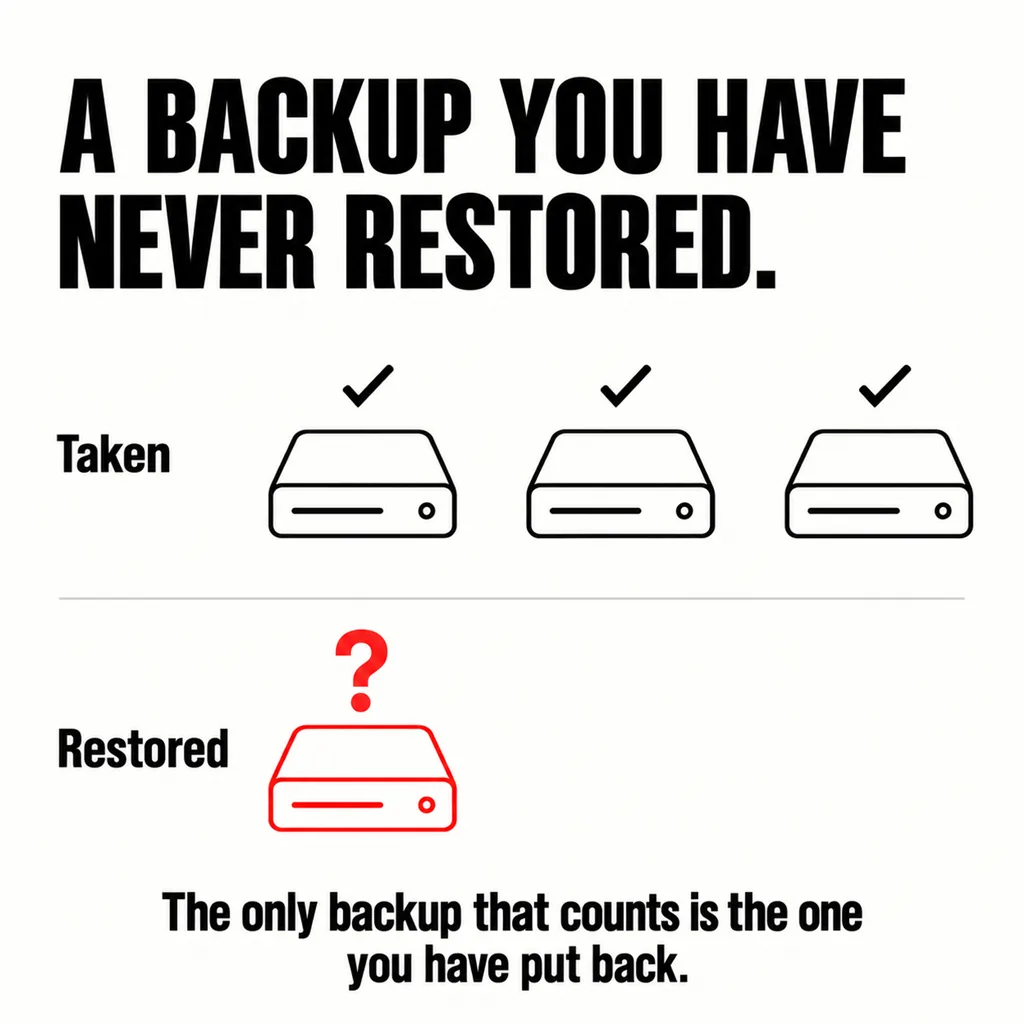
The second is backups, and specifically backups you have tested. WordPress’s security handbook asks for the discipline directly: “Back up your database regularly, and always before an upgrade”, and notes that if the database is erased or corrupted you stand to lose everything you have written. In the sites we take over, backups usually exist. What almost never exists is evidence that anyone has restored one.
| Habit | What it prevents | How often |
|---|---|---|
| Update core, plugins and theme | The security failures and most conflicts | Monthly, and read the release notes |
| Back up before every update | Having no way back when one breaks | Every time, automatically |
| Restore a backup somewhere safe | Discovering the backup was empty | Twice a year is enough |
| Check the admin email works | Missing the recovery link entirely | Once, then after any staff change |
A backup that has never been restored is an assumption, not a safeguard. Restoring one into a staging copy takes an afternoon and is the only way to find out whether the database was included, whether the uploads folder came with it, and whether anyone still has the credentials. We find a broken backup chain more often than we find a hacked site.
When the same class of thing keeps breaking. A single plugin conflict after an update is ordinary maintenance. A site that breaks every time anything is updated, where nobody dares touch the theme, is telling you the build underneath is the problem — usually a heavily customised theme, or a stack of plugins doing work the theme should be doing. That pattern and what it costs is covered in our article on a website becoming expensive to maintain, and the routine side of it in what a care plan actually covers.
Slowness is its own question rather than an error, and is almost always hosting, images or plugin count — see whether three seconds is really the limit. And if the answer turns out to be moving the site somewhere better, do it in the order set out in migrating a website without breaking it and revamping without downtime.
Most often because the installation predates WordPress 5.2, which introduced the handler that replaces the blank screen with a short notice and emails the administrator. If the site is current and you still see nothing, the error may be happening before WordPress loads — a server or PHP level failure rather than a plugin one — which is the point to ask your host to check the server error log.
Check the administrator address under Settings, General, because on an inherited site it is often the agency that built it rather than anyone at your company. Also check that the site can send mail at all; many hosts block the default PHP mail function, so the email is generated and never delivered. Both are worth fixing before you need them.
Usually, provided you take a backup first and update a few at a time rather than all at once, so a failure points at a short list. The risk is not the updating; it is updating with no way back and no record of what changed. If the site earns money while you sleep, do it on a staging copy first.
Most of what gets called a WordPress problem is really a maintenance habit that was never set up: nobody owns the updates, the admin email goes nowhere, and the backups have never been tested. Putting those three in place is ordinary work and it is what our web development and design service does for the sites we look after. If the build underneath turns out to be the thing that keeps breaking, our guide to choosing between a revamp and a full rebuild sets out how to tell.