
- Resources
Innovative Thinking


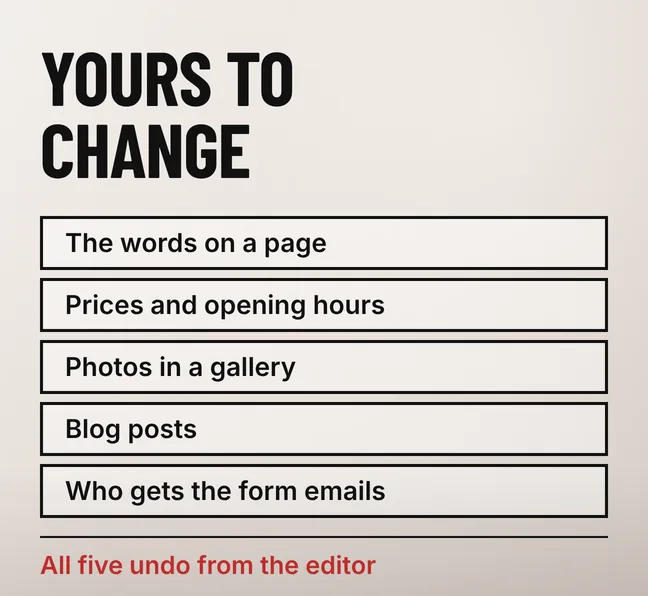
You can update website yourself after a revamp, and five kinds of edit are safely yours: the words on a page, prices and opening hours, photographs in a gallery, blog posts, and the address that receives your enquiry emails. All five sit inside content, and all five can be put back from the editor if you change your mind.
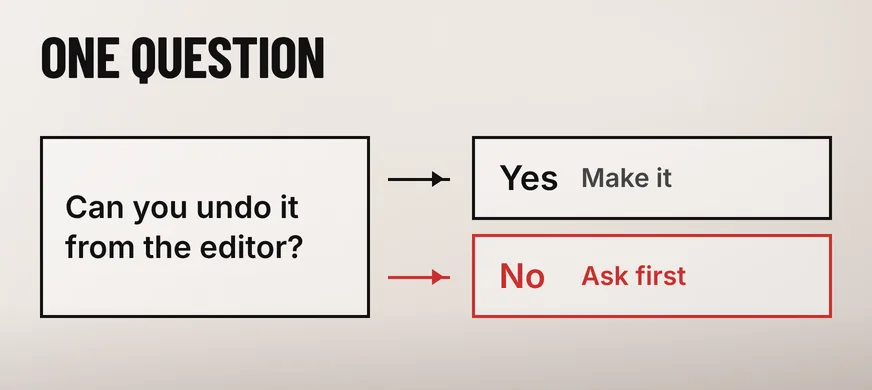
Risk here has little to do with how technical an edit looks. What decides it is whether you can undo the edit from the same screen you made it on. Renaming a page’s URL takes two clicks and no skill at all, and it is the single edit most likely to cost you a month of search traffic, because nothing in the editor puts it back.
The edits that are yours are the ones stored as content rather than as structure: page text, prices, opening hours, gallery photographs, blog posts, and the notification address on a contact form. Each of those is held in a record WordPress keeps a history of, so a bad edit is a restore away rather than a repair job.
| The edit | Where you make it | How you put it back |
|---|---|---|
| Rewording a paragraph | The page editor | Restore the previous revision |
| A price or a service that changed | The page editor | Restore the previous revision |
| Opening hours over Raya or Chinese New Year | The page editor | Edit the text again |
| Swapping a photograph in a gallery | The gallery block, then Media | Re-select the old file, which stays in Media |
| Publishing a blog post | Posts > Add New | Move it to Trash, or switch it back to Draft |
| Who receives the enquiry emails | The form plugin’s settings | Type the old address back in |
The second column is the real test. If the edit is made in the page editor, it is yours. If making it means going into Appearance, Plugins, Users or Settings, it belongs to whoever maintains the site, because none of those screens keeps a revision history you can roll back from.
It settles the awkward cases too. A new team photo on the About page is yours; a new homepage section needing a block the page does not already have is not, even though both start with clicking Edit.
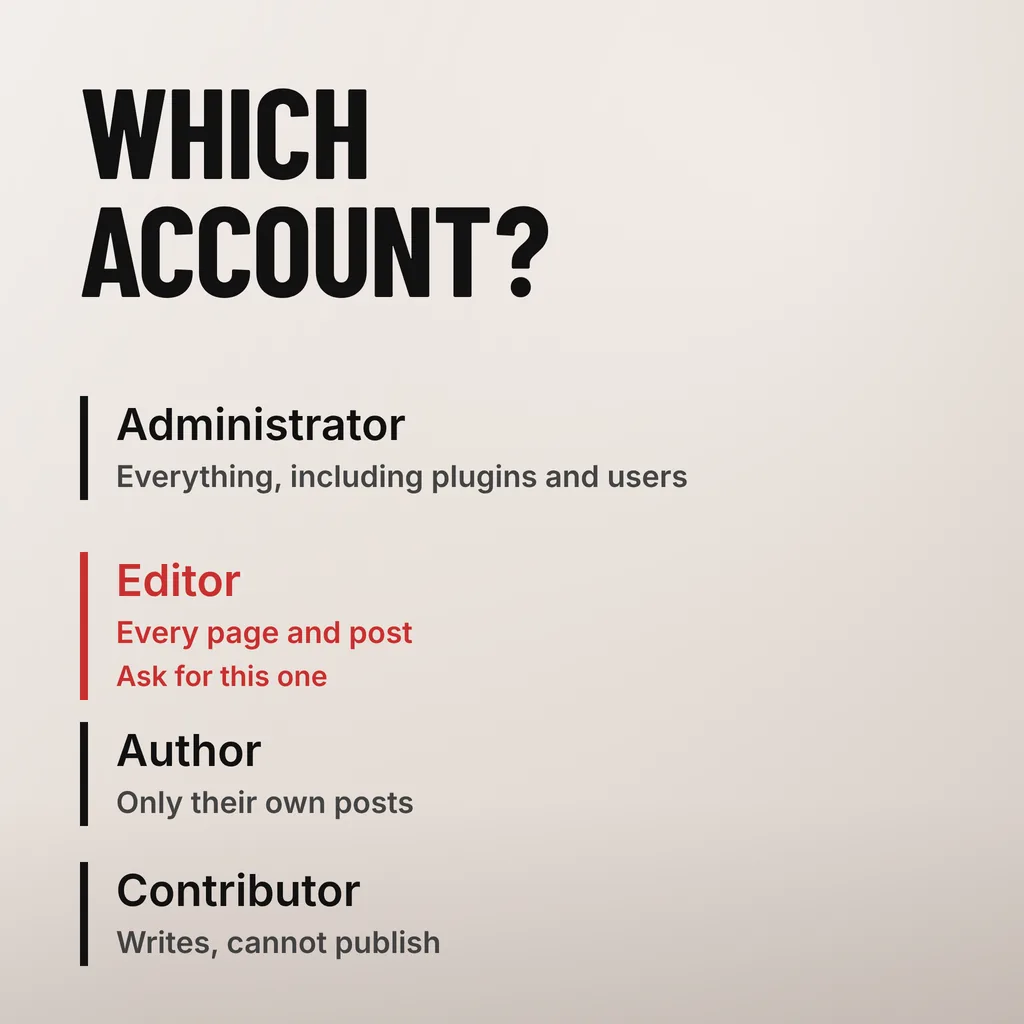
Ask for an Editor account, and leave the Administrator account to whoever maintains the site. WordPress defines an Editor as “somebody who can publish and manage posts including the posts of other users”, which covers every edit in the table above, while an Administrator is “somebody who has access to all the administration features within a single site”.
The difference matters because the Administrator screens are where the irreversible clicks live. WordPress’s own documentation on roles and capabilities lists what each role can reach: installing and activating plugins, switching themes, editing theme options and creating or changing user accounts all sit with the Administrator and with nobody else. “A Role defines a set of tasks a user assigned the role is allowed to perform.”
| Role | What WordPress says it is | What it cannot reach |
|---|---|---|
| Administrator | “Somebody who has access to all the administration features within a single site” | Nothing |
| Editor | “Somebody who can publish and manage posts including the posts of other users” | Plugins, themes, users, site settings |
| Author | “Somebody who can publish and manage their own posts” | Pages, and anyone else’s posts |
| Contributor | “Somebody who can write and manage their own posts but cannot publish them” | Publishing, and uploading files |
| Subscriber | “Somebody who can only manage their profile” | All editing |
Author and Contributor are worth knowing about if more than one person writes. A part-time marketing executive who should not be able to change the Services page is an Author; an intern whose posts you want to read before they go live is a Contributor.
One Administrator account still has to exist, and it has to be yours as the business rather than your developer’s personal login. That is the same argument as holding your own domain and hosting, which we set out in who should own your domain, hosting and website accounts. Hold the Administrator credentials; sign in with the Editor account for day-to-day edits.
Four edits should go to whoever maintains the site: changing a page’s URL, rearranging the navigation menu, touching the theme or its files, and running plugin or WordPress updates. None of them is difficult. All four are hard to reverse from the editor, and two of them can take the whole site down while you are looking at it.
Changing a URL is the expensive one. Every link anyone has ever shared, every Google result and every WhatsApp forward points at the old address, and a renamed page answers those with a 404 unless a redirect is put in its place. Google Search Central describes a redirect as telling visitors and Google Search that a page has a new location and recommends “that you use a permanent server-side redirect whenever possible”. Left without one, “it’s very likely that Google will continue to occasionally show the old URLs in the results”.
The menu is less obvious and catches people out more often. Dragging an item in the navigation can nest a top-level page under another one, which changes what every visitor sees in the header without changing a single page. Nothing warns you, and the menu screen has no revision history.
Theme settings, theme files and custom CSS are global: the change applies everywhere and stays invisible until someone opens every template. Plugin and core updates are the pair that can take a live page down. Skipping them is how sites get hacked, so they are necessary, but they belong against a backup and ideally a staging copy. That is a scheduled job, not something to do at 11pm before a promotion goes out.
Edit inside the block and never delete the block. A revamped page is built from blocks whose spacing, column widths and mobile behaviour were set once; the text inside them is yours to change, but deleting a block and typing a replacement loses all of that and is what produces a paragraph sitting flush against the edge of a phone screen.
Four habits prevent nearly every layout problem an owner creates:
The phone check is the one people skip and the one that matters most in Malaysia, where most of an SME’s traffic arrives on a mid-range Android handset over 4G. A line that looks balanced on a laptop can push a call-to-action button below three lines of orphaned text on a 6-inch screen.
Restore the previous revision first, before trying to fix anything by hand. WordPress keeps a copy of every saved update: its documentation says “the WordPress revisions system stores a record of each saved draft or published update”, and the Revisions screen compares versions side by side so you can see what changed. “Click the Restore button to restore a revision.”
Work through it in this order, and stop as soon as the page is right:
Autosaves are a separate safety net and a thinner one. WordPress stores “only ever a maximum of one autosave per user for any given post”, and autosaves “do not overwrite published content”, so an autosave can recover a draft lost to a dead browser tab but will not undo something you deliberately published. The thing that undoes a publish is a revision.
Everything that keeps the site running rather than current: backups you can actually restore from, plugin and WordPress core updates, security monitoring, uptime checks, PHP version upgrades and the redirect table. Those are scheduled work with a rollback plan behind them, and they are the reason a site that is five years old still loads.
Content is the opposite kind of work: small, frequent, urgent and specific to the business, like a price that changed this morning or hours over a public holiday. Waiting two days and paying for a change you could have made in four minutes is what makes a revamped site go stale, and a stale site is what sends owners looking for another rebuild they do not need.
The split belongs in writing at handover, which is one of the things a maintenance arrangement is for; we set out what one should cover in what a website care plan in Malaysia should actually include. Ask for it as a one-page list: what you edit, what they do monthly, and who to call when a page breaks.
Usually, yes, and the same line applies. Builders such as Elementor or Bricks let an Editor change text and images inside existing sections, which is the work you want. What they also expose is the layout itself, including spacing, columns and global styles that apply site-wide, so a misplaced drag changes far more than one page. Ask your developer to show you which sections you may edit and which to leave.
No, for ordinary content edits. Tell them when you add a page, change a page title, publish something that needs to appear in the menu, or notice anything looking wrong after you save. Those are the four cases where someone needs to set a redirect, update the navigation, add the page to the sitemap or look at the layout before a visitor does.
Not on its own, and keeping pages current usually helps. The damage comes from a small number of edits rather than from editing often: renaming a URL without a redirect, deleting a page that was bringing in enquiries, or replacing a page of specific detail with a shorter version that answers fewer questions. Check Google Search Console before you remove anything that was getting clicks.
A revamp that leaves the owner unable to change a price is unfinished, however good the design is. Our website revamp service hands over an Editor account, a written list of what is yours to edit, and a walkthrough of the pages you will touch most. One thing to do this week: sign in, open the page you most want to change, and see whether the screen you need is actually there.